| Tag | Name | Description |
|---|---|---|
| <table> | Table | The wrapper element for all HTML tables. |
| <thead> | Table Head | Defines the headings of table columns within table rows. |
| <tbody> | Table Body | Contains all table data other than table heading and table footer content. It will contain all table rows. Cannot have both <tbody> and <tr> as direct children. |
| <tr> | Table Row | Adds rows to a table before adding table headings and data. |
| <th> | Table Heading | Adds titles to rows and columns of a table and must be in a row element. |
| <td> | Table Data | Can be nested inside a table row element to add a cell of data to a table. |
| <tfoot> | Table Footer | Uses table rows to give footer content or summarize content at the end of a table. |
| Attribute | Name | Description |
|---|---|---|
| colspan | Colspan Attribute | Indicates how many columns that particular cell should span in a table on a table header or table data element. The colspan value is set to 1 by default and will only go from between 1 to 1000. |
| rowspan | Rowspan Attribute | Indicates how many rows that particular cell should span in a table on a table header or table data element. The rowspan value is set to 1 by default and will go up to 65534. |
| Tag | Name | Description |
|---|---|---|
| <html> | HTML | HyperText Markup Language is used to give content to a web page and instructs web browsers on how to structure that content. |
| <li> | List Item | Creates list items inside ordered lists, <ol> and unordered lists, <ul>. |
| <video> | Video | Embeds a media player for video playback. The src attribute contains the URL to the video. Adding the controls attribute will display video controls in the media player. |
| <em> | Emphasis | Emphasizes text and browsers will usually italicize the emphasized text by default. |
| <div> | Div | Used as a container that divides an HTML document into sections and is short for 'division'. Can contain flow content such as headings, paragraphs, links, images, etc. |
| <ol> | Ordered List | Creates a list of items in sequential order. Each list item appears numbered by default. |
| <br> | Line Break | Creates a line break in text and is especially useful where a division of text is required, e.g. a postal address. It requires only an opening tag and must not have a closing tag. |
| <img> | Image | Embed images in documents. The src attribute contains the imagr URL and is mandatory. It is an empty element, so no closing tag. |
| <h1>-<h6> | Heading | Can use 6 different levels of heading elements. The heading elements are ordered from the highest level <h1> to the lowest level <h6>. |
| <p> | Paragraph | Contains and displays a block of text. |
| <ul> | Unordered List | Creates a list of items in no particular order. Each individual list item will have a bullet point by default. |
| <body> | Body | Represents the content of an HTML document. Content inside <body> tags are rendered on the web browsers. There can only be one <body> element in a document. |
| <span> | Span | An inline container for text and can be used to group text for styling purposes. It is a generic container that separates pieces of text from a larger body of text. It should be avoided if a more semantic element is available. |
| <strong> | Strong | Highlights important, serious or urgent text. Browsers will normally render this highlighted text in bold by default. |
| <title> | Title | Contains a text that defines the title of an HTML document. The title is displayed in the browser's title or tab bar in which the HTML page is displayed. The <title> element can only be contained inside a document's <head> element. |
| <!DOCTYPE html> | Document Type Declaration | Required as the first line of an HTML document. It is an instruction to the browser about what type of document to expect and which version of HTML is being used, e.g. HTML5. |
| <a> | Anchor | Used to create hyperlinks in an HTML document. The hyperlinks can point to other webpages, files on the same server, a location on the same page, or any other URL via the hyperlink reference attribute, href. The href etermines the location the anchor element points to. |
| <head> | Head | Contains general information about an HTML page that isn't displayed on the page itself. This information is called metadata and includes things like the title of the HTML document and links to stylesheets. |
| Attribute | Name | Description |
|---|---|---|
| target | Target | The target attribute on an <a> element specifies where a hyperlink should be opened. A target value of "_blank" will tell the browser to open the hyperlink in a new tab in modern browsers, or in a new window in older browsers or if the browser has had settings changed to open hyperlinks in a new window. |
| alt | Alt | An <img> element can have alternative text via the alt attribute. It will be displayed if an image fails to render due to an incorrect URL, f the image is blocked from being displayed, or if the image has not been received from the URL. The text will be read aloud if screen reading software is used and helps support visually impaired users by providing a text descriptor for the image content on a webpage. |
| id | ID | Specific and unique id attributes can e assigned to different elements in order to differentiate between them. Can be called upon by CSS and JavaScript to manipulate, format and perform specific instructions on that element and that element only. Valid id attributes should begin with a letter and should only contain letters (a-z), numbers (0-9), hyphens (-), underscores (_) and periods (.). |
| Note: HTML attributes are values added to the opening tag of an element to configure the element or change the element's default behaviour, e.g. id and style attributes. | ||
| Selector | Description |
|---|---|
| class | CSS classes can be reusable and applied to many elements. They are denoted with a . followed by the class name. |
| id | ID selectors should be unique and used to style only a single element. They are denoted with a # and are followed by the id name. |
| type | Used to match all elements of a given type or tag name. Unlike for HTML syntax, we do not include the angle brackets when using type selectors for tag names. Elements are matched regardless of their nesting level in the HTML. |
| Property | Description |
|---|---|
| font-size | The font-size CSS property is used to set text sizes. Font size values can be many different units or types, such as pixels. |
| background-color | Controls the background color of elements. |
| opacity | Can be used to control the transparency of an element. The value of this property ranges from 0 (transparent) to 1 (opaque). |
| font-weight | Can be used to set the weight (boldness) of text. |
| text-align | Can be used to set the text alignment of inline contents. Can be set to left, right or center. |
| font-family | Used to specify the typeface in a rule set. Fonts must be available to the browser to display correctly, either on the computer or linked as a web font. If a font is not available, browsers will display their default font. When using a multi-word font name, it is best practice to wrap them in quotes. |
| color | Can be used to set color property values for elements in CSS. Can be a valid color like green or blue. Or, a 3 digit or 6 color code like #22f or #2a2aff can be used to set the color. |
| background-image | Sets the background image of an element. An image URL should be provided in the syntax url("moon.jpg") as the value of the property. |
| Property | Description |
|---|---|
| font-weight | Declares how thick or thin the text characters will be. Numerical values can be used to set the thickness of the text. The range is from 100 to 900 and accepts only multiples of 100. The default value is normal and the default numerical value is 400. 400 and below will make the text appear lighter than the default while any value greater than 400 will appear bolder. |
| font-style | Determines the font style in which text will appear, e.g. italic. |
| text-align | Can be used to set the text alignment of inline contents. Can be set to left, right or center. |
| color | Using the color property, foreground text color of an element can be set in CSS. The value can be a valid color name supported in CSS like green or blue. Also, 3 digit, e.g. #22f or 6 digit, e.g. #2a2aff can be used to set the color. |
| background-image | Sets the background image of an element. An image URL should be provided in the syntax url('moon.jpg') as the value of the property. |
| font-family | Specifies the typeface in a ruleset. Fonts must be available to the browser to display correctly, either on the computer or liked as a web font. If a font value is not available, browsers will display their default font. When using a multi-word font name, it is best practice to wrap them in quotes. |
| line-height | Declares the vertical spacing between lines of text. It accepts both unitless numbers as a ratio, e.g. 2 and numbers specified by unit as values, e.g. 12px, but it does not accept negative numbers. A unitless number is an absolute value that will compute the line height as a ratio to the font size and a unit can be any valid CSS unit, e.g. pixels, percents, ems, rems, etc. |
| Color Type | Description |
|---|---|
| Color | Can be used to set color property values for elements in CSS. |
| Alpha Values | Determines the transparency of colors in CSS. Alpha values can be set for both RGB and HSL colors by using rgba() and hsla() and providing a fourth value representing alpha. Alpha values can range between 0.0 (totally transparent) and 1.0 (totally opaque). The CSS transparent value can also be used to create a fully transparent element. |
| Hexadecimal Colors | Colors can be represented in hexadecimal (or hex) notation. Hexadecimal digits can represent 16 different values usimg 0-9 and a-f. Hexadecimal colors are composed of 6 characters - each group of two represents a value between 0 and 255 for red, green or blue. For example, #ff0000 is all red, no green and no blue. When both characters of all 3 colors are repeated, hex colors can be abbreviated to only 3 values, so #0000ff could also be represented as #00f. |
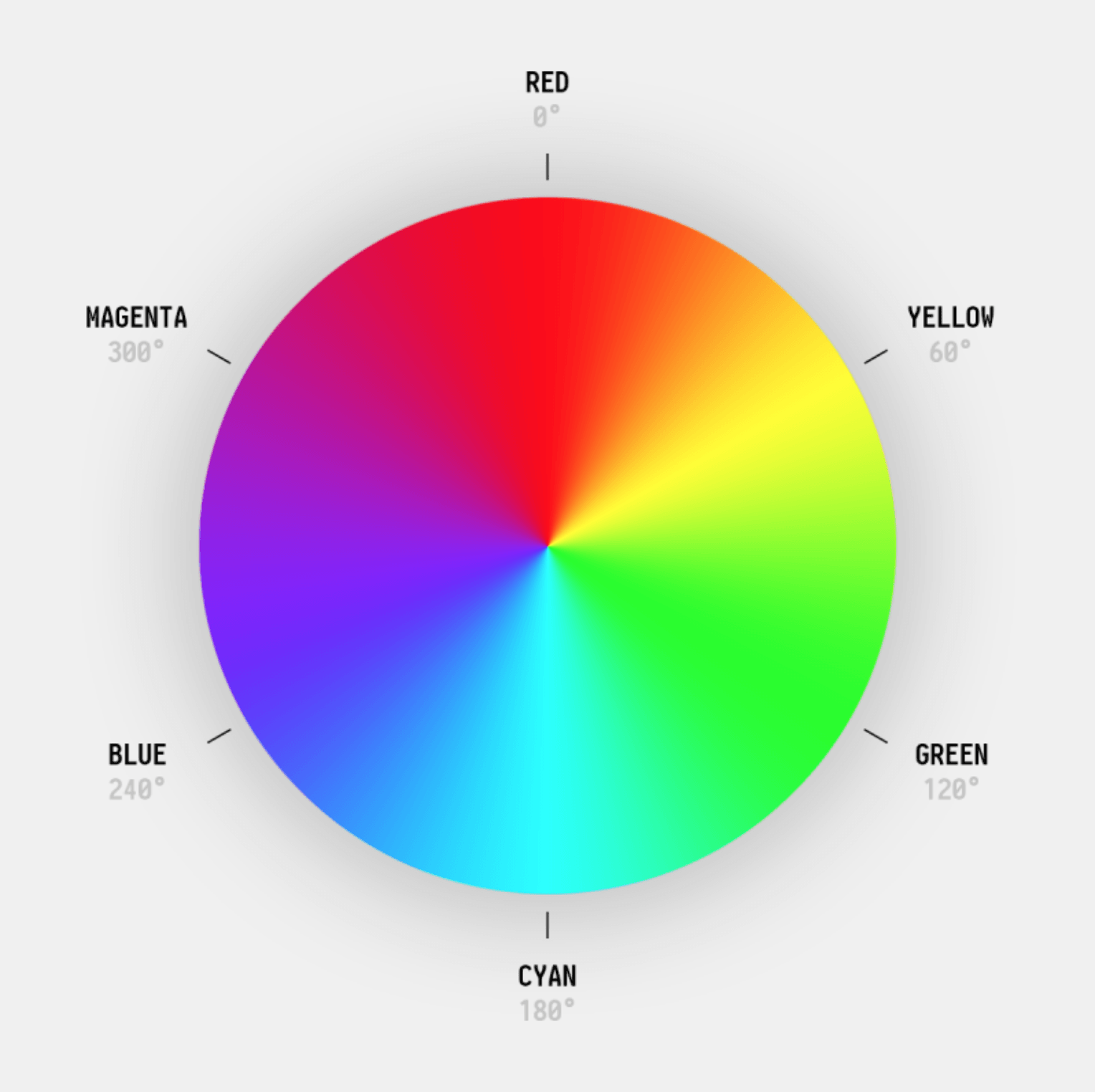
| HSL Colors | Colors can be declared with the HSL color system using hsl() syntax. This system contains 3 values: hue (the color value itself), saturation (intensity) and lightness. Hue values range from 0 to 360 while saturation and lightness values are represented as percentages. |
| RGB() Colors | Colors can be decalared with RGB colors using rgb() syntax. Should be supplied with 3 values representing red, green and blue. These values range from 0 to 255. |
| Property | Description |
|---|---|
| overflow | If content is too large for its container, the CSS overflow property will determine how the browser handles the problem. By default, it is set to visible and the content will take up extra space. It can be set to hidden or scroll, which makes the overflowing content accessible via scroll bars within the original container. |
| visibility | Used to render hidden objects invisible to the user, without removing them from the page. This ensures that the page structure and organization remain unchanged. |
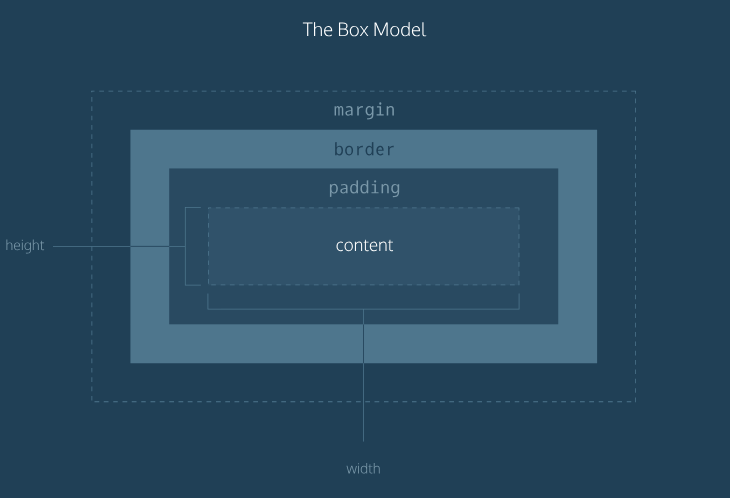
| box-sizing | The CSS box model is a box that wraps around an HTML element and controls the design and layout. The box-sizing controls which aspect of the box is determined by the height and width properties. The default value of this property is content-box, which renders the actual size of the element including the content box, but not the paddings and borders. The value border-box renders the actual size of an element including the content box, paddings and borders. |
| Command | Name | Description |
|---|---|---|
| ls | List | This shell command is used to list the contents of a directory. If no arguments are given, it will list the contents of the current working directory. |
| pwd | Print Working Directory | Displays the file path from the root directory to the current working directory. |
| cd | Change Directory | Used to move throughout the filestystem of a computer. It acepts a variety of arguments:
|
| mkdir | Make Directory | Used to make a new directory in the filesystem according to its argument. If a file path is given, the new directory will be place at the end. Otherwise, it will create a new directry in the current working directory. |
| touch | Create New File | Creates a new file in the current working directory with the name provided. |
| Tag | Description |
|---|---|
| <embed> | Can be used to implement any type of media. It is a self-closing tag. |
| <video> | Allows us to add videos to our website. Requires a closing tag. |
| <audio> | Allows us to implement audio into our website. Requires a closing tag. |
| <figure> and <figcaption> | The <figure> element is used to encapsulate media such as an image, diagram or code snippet. The <figcaption> element is used to describe the media encapsulated within the <figure> element. Developers will normally use <figcaption> within the <figure> element to group the media and description. So, if you decide to change the position of the media, the description goes along with it. |
| <section> and <article> | <section> defines elements in a document, like chapters, headings or any other are of the document with the same theme. <article> holds content that makes sense on its own like articles, blogs and comments. Generally, we use <section> to define a theme for the webpage and use <article> to write independent content for that theme. They do not have to be used together. |
| <aside> | Used to mark additional information that can enhance another element, but isn't required i order to understand the main content. This information can be in a sidebar or a location where it doesn't obstruct the main piece of content. |
| Property | Description |
|---|---|
| display | Determines the type of render block for an element. The most common values are block, inline and inline-block. Block: elements take up the full width of their container with line breaks before and after and can have their height and width manually adjusted. Inline: elements take up as little space as possible, flow horizontally and cannot have their height or width manually adjusted. Inline block: elements can appear next to each other and can have their width and height manually adjusted. |
| z-index | Specifies how far back or forward an element will appear on a web page when it overlaps other elements. It uses integer values which can be positive or negative. The element with the highest z-index will be at the foreground and the element with the lowest z-index will be at the back. |
| position | Positioning in CSS provides designers and developers options for positioning HTML elememts on a web page. It can be set to static, relative, absolute or fixed. Fixed: set/pinned to a specific spot on the page. It stays the same regardless of scrolling. The navigation bar is a great example of an element that is often set to fixed, where the user can scroll through the web page and still access the navigation bar. Absolute: enables an element to ignore sibling elements and instead be positioned relative to its closest parent element that is positioned with relative or absolute. The absolute value removes an element entirely from the document flow. Bu using the positioning attributes top, left, bottom amd right, an element can be positioned anywhere as expected. Relative: enables an element to be positioned relative to where it would have originally been on a web page. The offset properties can be used to determine the actual position of the element relative to its origninal position. Without the offset properties, this declaration will have no effect on its positioning, it will act as the default value static of the position property. |
| float | Determines how far left or right an element should float within its parent element. Left floats an element to the left side of its container and right floats to the right side of the container. For the property float, the width of the container must be specified or the element will assume the full width of its containing element. |
| clear | Specifies how an element should behave when it bumps into another element within the same containing element. It is usually used in combination with the float property. This determines on on which sides floating elements are allowed to float. |
| Command | Description |
|---|---|
| git init | Creates or initializes a new Git project or repository. It creates a .git folder with all the tools and data necessary to maintain versions. Only use this command once per project to complete the initial setup. |
| git status | Used within a Git repository to see its current status including the current commit, any modified files and any new files not being tracked by Gits. The output can vary widely and it often includes helpful messages to direct the user to manage their repository. |
| git diff | Displays the differences between the working directory and the staging area in one specific file. Use git diff filename before adding new content to ensure that you are making the changes you expect. |
| git log | Shows all of the commit logs for a project. The following is displayed for each commit:
|
| git commit -m "log message here" | Creates a new commit containing the current contents of the staging area and a log message describing the changes to the repository. It is the last step in the Git workflow. It permanently stores changes from the staging area inside the repository. It is almost always used with git add. |
| git add | Used to add the file changes to the staging area. After these changes have been staged, you can use git commit to permanently store the changes. |
| Property | Description |
|---|---|
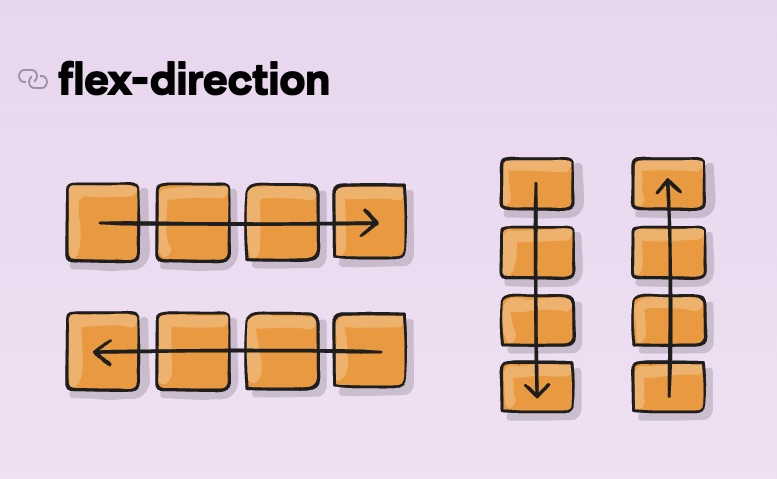
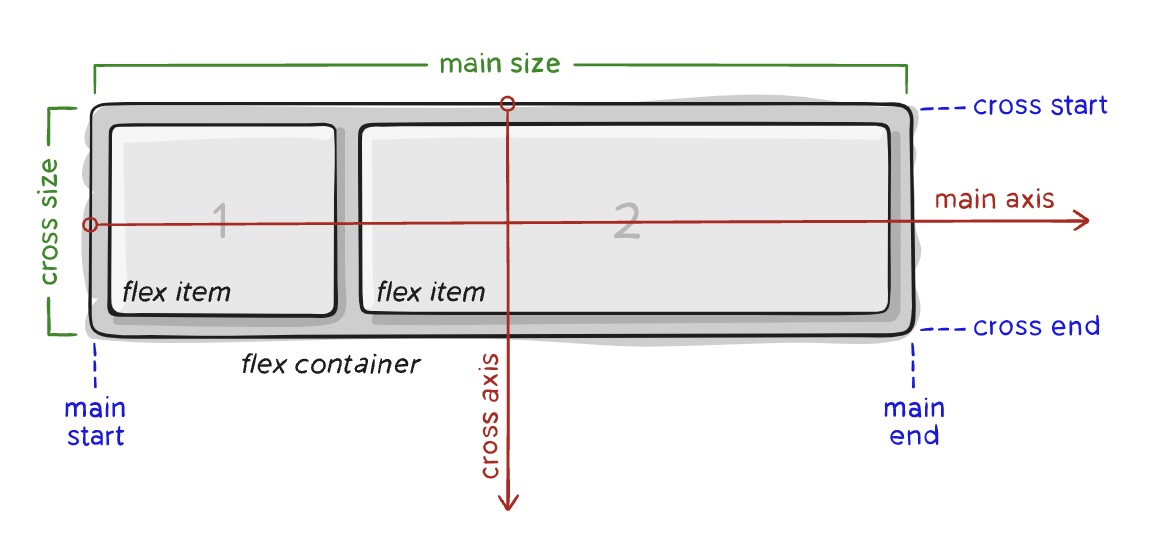
| flex-direction | This establishes the main axis, defining the direction that flex items are placed in the flex container. Flexbox is (except for optional wrapping) a single-direction layout concept. The flex items are primarily laid out in either horizontal or vertical columns.
![]() |
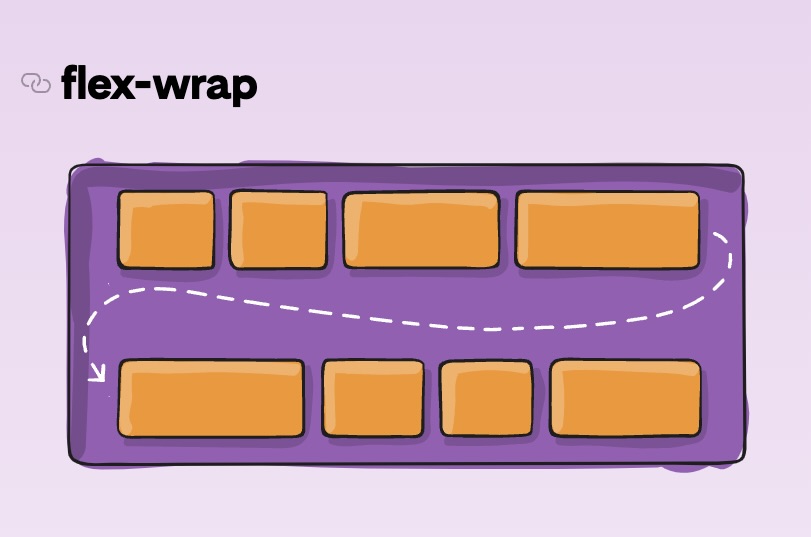
| flex-wrap | By default, flex items will all try to fit onto one line. You can change that and allow the items to wrap as needed with this property.
|
| flex-flow | This is a shorthand for flex-direction and flex-wrap, which together define the flex container's main and cross axes (horizontal and vertical). |
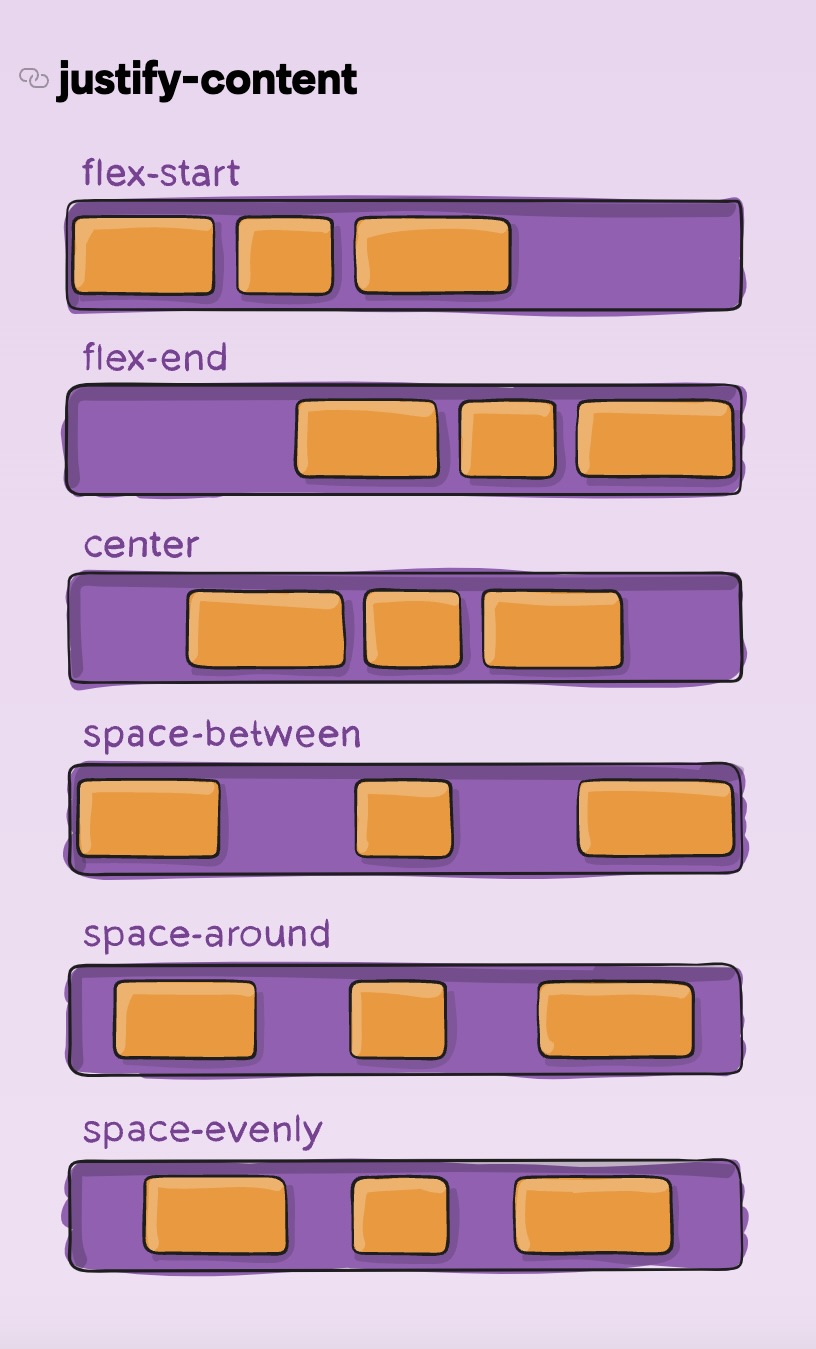
| justify-content | This defines the alignment along the main axis. It helps distribute extra free space leftover when either all the flex items on a line are inflexible, or are flexible but have reached their maximum size. It also exerts some control over the alignment of items when they overflow the line.
|
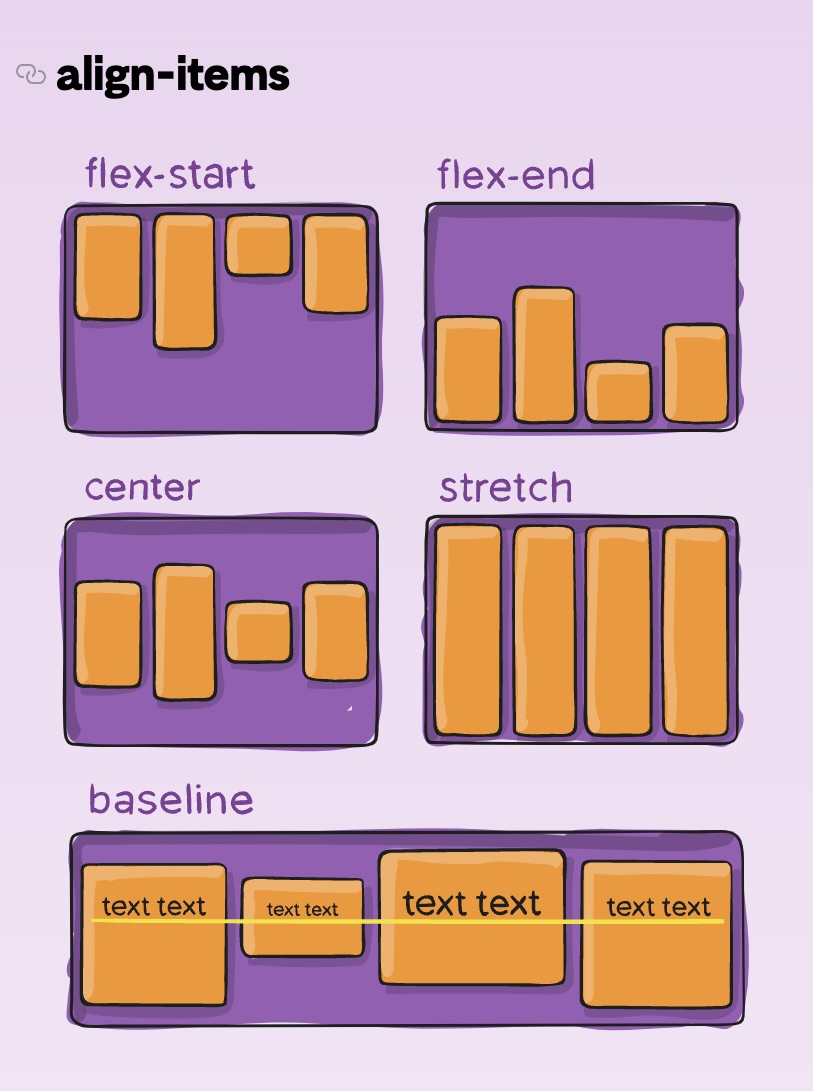
| align-items | This defines the default behavior for how flex items are laid out along the cross axis on the current line. It is the justify-content version for the cross-axis (vertical axis - perpendicular to the horizontal axis).
|
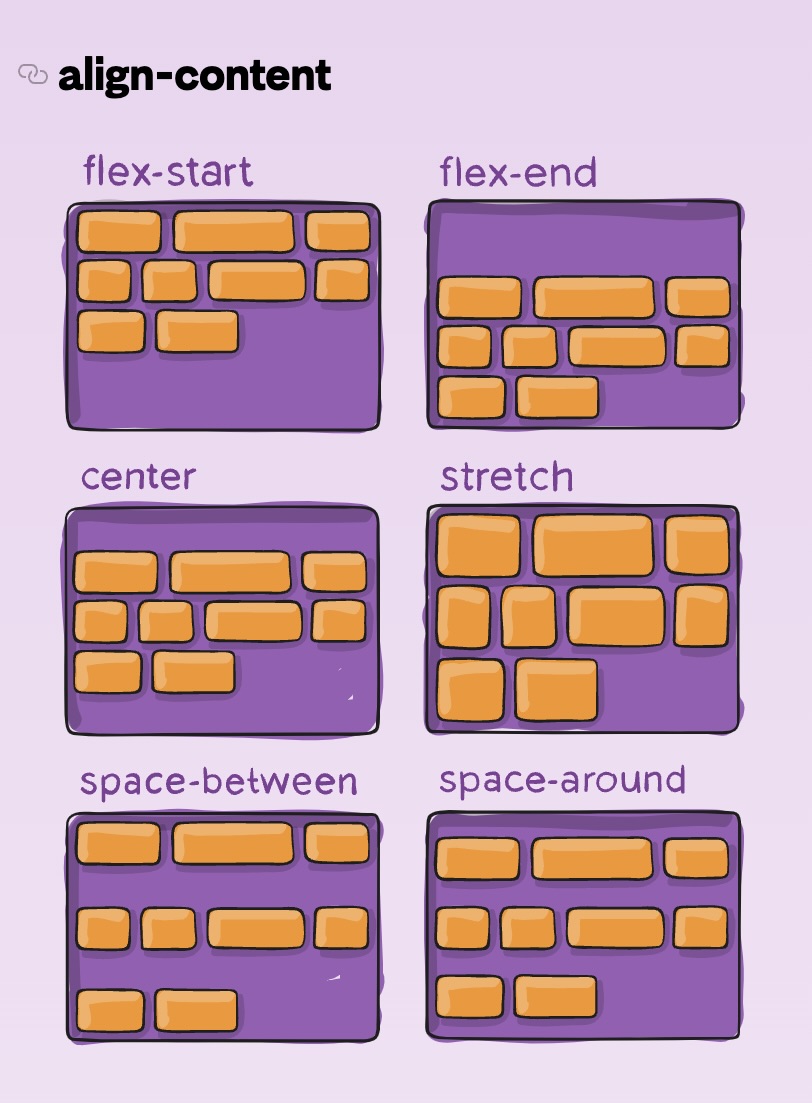
| align-content | This aligns a flex container's lines within when there is extra space in the vertical axis. This only takes effect on multi-line flexible containers, where flex-wrap is either set to wrap or wrap-reverse. A single line will not work with align-content.
|
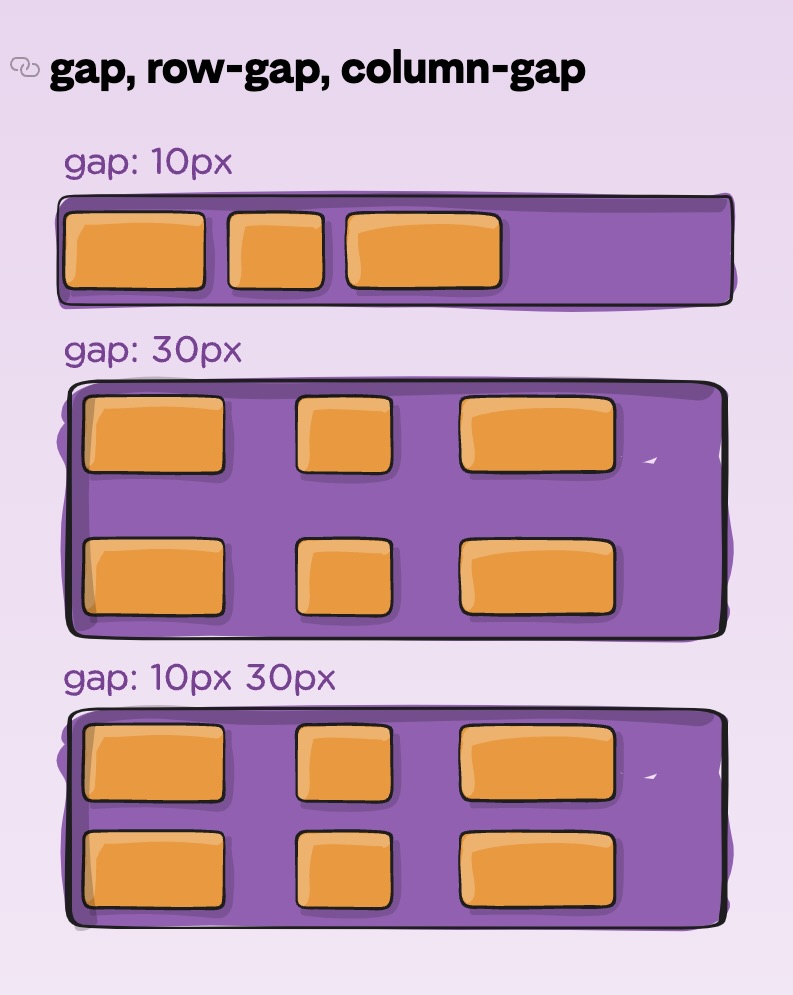
| gap | Explicitly controls the space between flex items. It works only between items, not on the outer edges. The behavior could be thought of as a minimum gutter, where if the gutter is bigger because of justify-content or space-between, then the gap will only take effect if that space would end up smaller.
|
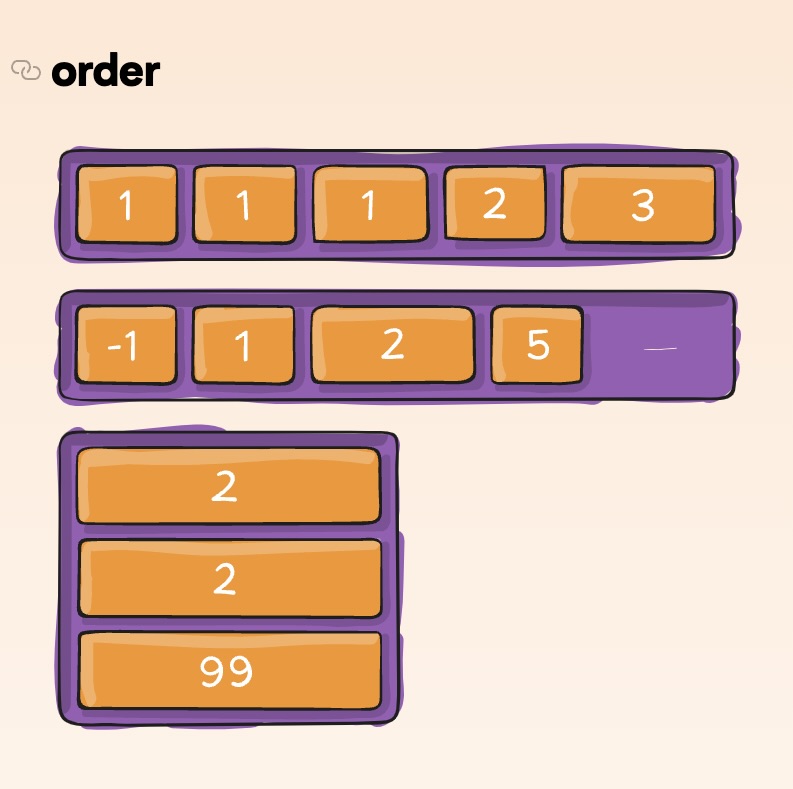
| order | Flex items are laid out in the source order by default. The order property controls the order in which they appear in the flex container.
|
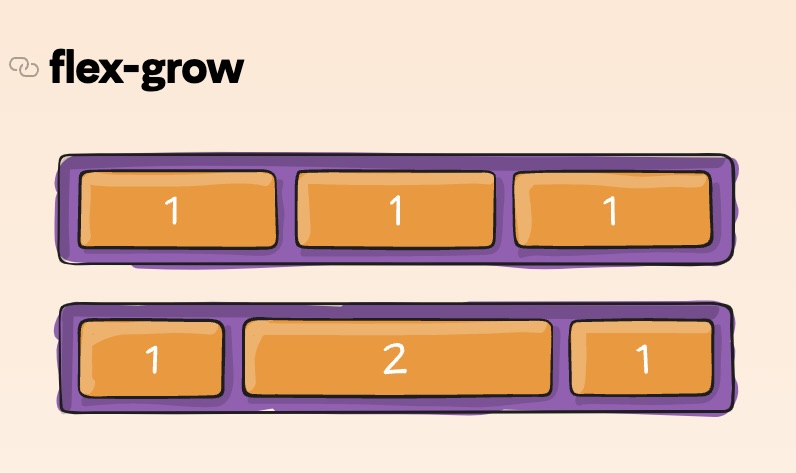
| flex-grow | This defines the ability for a flex item to grow, if necessary. It accepts a unitless value that serves as a proportion. It dictates what amount of the available space inside the flex container the item should take up. If all items have flex-grow set to 1, the remaining space will be distributed equally to all children. If one child has a value of 2, that child would take up twice as much of the space of either one of the others (or it will try, at least). Negative numbers are invalid.
|
| flex-shrink | This defines the ability for a flex item to shrink, if necessary. Negative numbers are invalid. |
| flex-basis | This defines the default size of an element before the remaining space is distributed. It can be a length (e.g. 20%, 5rem, etc.) or a keyword. The auto keyword means "look at my width or height property". The content keyword means "size it based on the item's content" (not well supported). If set to auto, the extra space around content isn't factored in. If set to auto, the extra space is distributed based on its flex-grow value. |
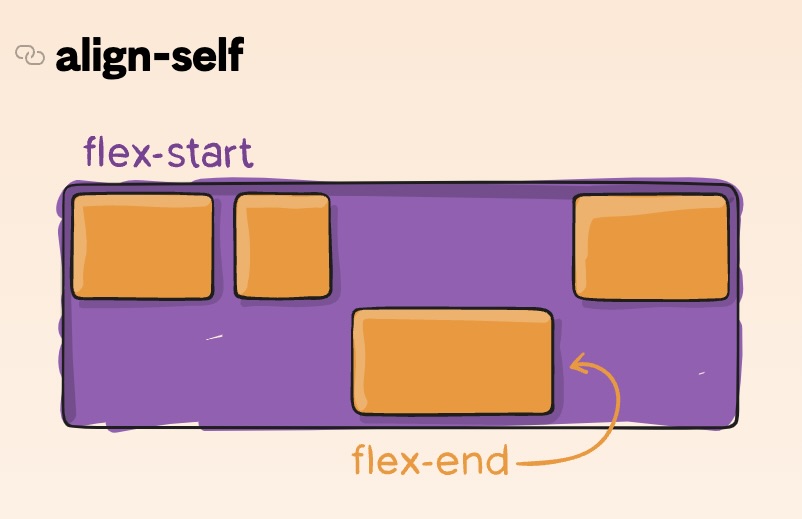
| align-self | This allows the default alignment (or the one specified by align-items) to be overridden for individual flex items. Please see the align-items explanation to understand the available values.
|
| flex | This is the shorthand for flex-grow, flex-shrink and flex-basis combined. The second and third parameters are optional. The default is 0 1 auto, but if you set it with a single number like 5, that changes the flex-basis to 0%, so it's like setting flex-grow: 5; flex-shrink: 1; flex-basis: 0%; |
| Link/Button Data | Description |
|---|---|
| Signifiers | Indicators that offer clues about how to interact with new objects or situations. |
| User Agent Stylesheet | A set of default styles included in the browser for use on all web pages. |
| Links and Button Behavior | Should exhibit the same behavior across different browsers to consistently maintain the same experience for all users. |
| Link States | In a browser, links have 4 main states:
|
| Link Styles | Links should be styled in a different way from their surrounding text. By default, links appear blue and underlined in contrast to the surrounding black text. |
| Anchor Text | The text inside of a link and is descriptive of the linked resource. It improves:
|
| title | The title attribute can be provided to any HTML element. This attribute is used for additional context or advisory text for clickable elements. |
| Tooltips | A tooltip is a descriptive box which contains the text of an element's title attribute and appears near the user's cursor. |
| :hover CSS Pseudo-Class | Used to style an element when the mouse cursor hovers over it. |
| CSS cursor Property | Used to change the appearance of the mouse cursor when hovering over an element. |
| Skeuomorphism | The concept of replicating or imitating real life counterparts with UI elements. |
| Flat Design | Uses simplicity and lack of clutter for its UI elements. |
| Button Skeuomorphic Styling | A <button> element can incorporate skeuomorphic styling for a realistic 3D appearance. When pressing the button, a texture change may occur to make the button appear to flatten and pop back up when released. |
| Button Flat Styling | A <button> element can incorporate flat styling for a simple 2D effect. When pressing the button, a color change may occur as a signifier that the button has been pressed. |
| Button Hover State | A button can have a hover state that changes the appearance of a cursor when it is directly over the button. |
| Mobile Device Hover State | The hover state of buttons and links does not apply to mobile devices due to the lack of a cursor. |
| Attribute | Description | Example |
|---|---|---|
| Grid Template Columns | To specify the number of columns of the grid and the widths of each column, the CSS property grid-template-columns is used on the grid container. The number of width values determines the number of columns and each width value can be either in pixels (px) or percentages (%). | #grid-container { display: grid; width: 100px; grid-template-columns: 20px 20% 60%; ] |
| fr Relative Unit | The CSS grid relative sizing unit fr is used to split rows and/or columns into proportional distanes. Each fr unit is a fraction of the grid's overalll length and width. If a fixed unit is used along with fr (like pixels for example), then the fr units will only be proportional to the distance left over. | /* In this example, the second column take s 60px of the available 100px so the first and third columns split the remaining available 40px into two parts (`1fr` = 50% or 20px) */ .grid { display: grid; width: 100px; grid-template-columns: 1fr 60px 1fr; } |
| Grid Gap | The CSS grid-gap prperty is a shorthand way of setting the teo properties grid-row-gap and grid-column-gap. It is used to deermine the size of the gap between eah row and each column. The first value sets the size of the gap between rows and while the second value sets the size of the gap between columns. | // The distance between rows is 20px // The distane between columns is 10px #grid-container { display: grid; grid-gap: 20px 10px; ] |
| CSS Block Level Grid | CSS Grid is a two-dimensional CSS layout system. To set an HTML element into a block-level grid container use display: grid property/value. The nested elements inside this element are called grid items. | #grid-container { display: grid |
| CSS grid-row | The CSS grid-row property is shorthand for the grid-row-start and grid-row-end prperties specifying a grid item's size and location within the grid row. The starting and ending row values are separated bya /. There is a corresponding grid-column property shorthand that implements the same behavior for columns. | /* CSS Syntax */ grid-row: grid-row-start / grid-row-end; /* Example */ .item { grid-row: 1 / span 2; } |
| CSS Inline Level Grid | CSS Grid is a two-dimensional CSS layout system. To set an HTML element into a inine-level grid container use display: inline-grid property/value. The nested elements inside this element are called grid items. The difference between the values inline-grid and grid is that the inline-grid will make the element inline while grid will make it a block-level element. | #grid-contaienr { display: inline-grid; ] |
| minmax() Function | The CSS Grid minmax() function accepts two parameters:
The grid must have a variable width for the minmax() function. If the maximum value is less than the minimum, then the maximum value is ignored and only the minimum value is used. The function can be used in the values of the grid-template-rows, grid-template-columns and grid-template properties. |
/* In this example, the second column will vary in size between 100px and 500px depending on the size of the web browser. */ .grid { display: grid; grid-template-columns: 100px minmax(100px, 500px) 100px; } |
| grid-row-start & grid-row-end | The CSS grid-row-start and grid-row-end properties allow single grid items to take up multiple rows. The grid-row-start property defines on which row-line the item will start. The grid-row-end property defines how many rows an item will span, or on which row-line the item will end. The keyword span can be used with either property to automatically calculate the ending value from the starting value or vice versa. There are complementary grid-column-start and grid-column-end properties that apply the same behavior to columns. | /* CSS syntax: grid-row-start: auto|row-line; grid-row-end: auto|row-line|span n; */ grid-row-start: 2; grid-row-end: span 2; |
| CSS grid-row-gap | The CSS grid-row-gap property determines the amount of blank space between each row in a CSS grid layout or in other words, sets the size of the gap (gutter) between an element's grid rows. The grid-column-gap provides the same functionality for space between grid columns. | /* CSS Syntax */ grid-row-gap; length; /* Any legal length value, like px or %. 0 is the default value. */ |
| CSS grid-area | The CSS grid-area property specifies a grid item's size and location in a grid layout and is a shorthand property for the grid-row-start, grid-column-start, grid-row-end, grid-column-end in that order. Each value is separated by a /. In the included example, Item1 will start on row 2 and column 1, and span 2 rows and 3 columns. | .item1 { grid-area: 2 / 1 / span 2 / span 3; } |
| Justify Items | The justify-items property is used on a grid container. It's used to determine how the grid items are spread out along a row by setting the default jusify-self property for all child boxes. The value start aligns grid items to the left side of the grid area. The value end aligns grid itmes to the right side of the grid area. The value center aligns grid items to the center of the grid area. The value stretch stretches all items to fill the grid area. | #container display: grid; justify-items: center; grid-template-columns: 1fr; grid-template-rows: 1fr 1fr 1fr; grid-gap: 10px; |
| Align Self | The CSS align-self property is used to set how an individual grid item positions itself along the column or block axis. By default grid items inherit the value of the align-items property on the container. So if the align-self value is set, it would over-ride the inherited align-items value. The value start positions grid items on the top of the grid area. The value end aligns the grid on the bottom of the grid area. The value center positions grid items on the center of the grid area. The value stretch positions grid items to fill the grid area (default). | |
| CSS grid-template-areas | The CSS grid-template-areas property allows the naming of sections of a webpage to use as values in the grid-row-start, grid-row-end, grid-column-start, grid-column-end and grid-area properties. They specify named grid areas within a CSS grid. | /* Specify two rows, where "item" spans the first two columns in the first two rows (in a four column grid layout) */ .item { grid-area: nav; } .grid-container { display: grid; grid-template-areas: 'nav nav . .' 'nav nav . .' } |
| CSS grid-auto-flow | The CSS grid-auto-flow property specifies whether implicity-added elements should be added as rows or columns within a grid or, in other words, it controls how auto-placed items get inserted in the grid and this property is declared on the grid container. The value row specifies the new elements should fill rows from left to right and create new rows when there are too many elements (default). The value column specifies the new elements should fill columns from top to bottom and create new columns when there are too many elements. The value dense invokes an algorithm that attempts to fill holes earlier in the grid layout if smaller elements are added. | /* CSS Syntax */ grid-auto-flow: row|column|dense|row dense|column dense; |
| Justify Content | Sometimes the total size of the grid items can be smaller than the grid container. If this is the case, the CSS property justify-content cna be used to position the entire grid along the row or inline axis of the grid container. The value start aligns the grid to the left side of the grid container. The value end aligns the grid to the right side of the grid container. The value center centers the grid horizontally in the grid container. The value stretch stretches the grid items to increase the ize of the grid to expand horizontally across the container. The value space-around includes an equal amount of space on each side of a grid element, resulting in double the amount of space between elements as there is before the first and after the last element. The value space-between includes an equal amount of space between grid items and no space at either end. The value space-evenly places an even amount of space between grid items and at either end. | |
| Align Content | Some times the total size of the grid items can be smaller than the grid container. If this is the case, the CSS property align-content can be used to position the entire grid along the column axis of the grid container. The property is declared on the grid container. The value start aligns the grid to the top of the grid container. The value end aligns the grid to the bottom of the grid container. The value center centers the grid vertically in the grid container. The value stretch stretches the grid items to increase the size of the grid to expand vertically across the container. The value space-around includes an equal amount of space on each side of a grid element, resulting in double the amount of space between elements as there is befoere the first and after the last element. The value space-between includes an equal amount of space between grid items and no space at either end. The value space-evenly places an even amount of space between grid items and at either end. | |
| CSS grid-auto-rows (implicit) | The CSS grid-auto-rows property specifies the height of implicitly added grid rows or it sets a size for the rows in a grid container. This property is declared on the grid container. grid-auto-columns provides the same functionality for columns. Implicitly-added rows or columns occur when there are more grid items than cells available. | |
| Justify Self | The CSS justify-self property is used to set how an individual grid itempositions itself along the row or inine axis. By default grid items inherit the value of the justify-items property on the container. So if the justify-self value is set, it would over-ride the inherited justify-items value. The value start positions grid items on the left side of the grid area. The value end positions the grid items on the right side of the grid area. The value center positiond grid items on the center of the grid area. The value stretch positions grid items to fill the grid area (default). | // The grid items are positioned to the right (end) of the row. #grid-container { display: grid; justify-items: start; } .grid-items { justify-self: end; } |
| CSS grid-area | The CSS grid-area property allows for elements to overlap each other by using the z-index property on a particular element which tells the browser to render that element on top of the other elements. | |
| Align Items | The align-items property is used on a grid container. It's used to determine how the grid items are spread out along the column by setting the default align-self property for all child grid items. The value start aligns grid items to the top side of the grid area. The value end aligns grid items to the bottom side of the grid area. The value center aligns grid items to the center of the grid area. The value stretch stretches all items to fill the grid area. | #container { display: grid; align-items: start; grid-template-columns: 1fr; grid-template-rows: 1fr 1fr 1fr; grid-gap: 10px; } |
| Syntax Attribute | Description | Example |
|---|---|---|
| console.log() | The console.log() method is used to log or print messages to the console. It an also be used to print objects and other info. | console.log('Hi there!'); // Prints: Hi there! |
| JavaScript | JavaScript is a programming language that powers the dynamic behavior on most websites. Alongside HTML and CSS, it is a core techmology that makes the web run. | |
| Methods | Methods return the information about an object, and are called by appending an instanc with a period . , the method name, and parentheses. | Math.random(); // Returns a number between 0 and 1 |
| Built-in Objects | Built-in objects contain methods that can be called by appending the object name with a period . , the method name, and a set of parentheses. | Math.random() // Math is the built-in object |
| Numbers | Numbers are a primitive data type. They include the set of all integers and floating point numbers. | let amount = 6; let price = 4.99; |
| String.length | The .length property of a string returns the number of characters that make up the string. | let message = 'good nite'; console.log(message.length); // Prints: 9 console.log('howdy'.length); // Prints: 5 |
| Data Instances | When a new piece of data is introduced into a JavaScript program, the program keeps track of it in an instanceof that data type. An instance is an individual case of a data type. | |
| Booleans | Booleans are a primitive data type. They can either be true or false. | let lateToWork = true; |
| Math.random() | The Math.random() method returns a floating-point, random number in the frange from 0 (inclusive) up to but not including 1. | console.log(Math.random()); // Prints: 0 - 0.9999999999 |
| Math.floor() | The Math.floor() function returns the largest integer less than or equal to the given number. | console.log(Math.floor(5.95)); // Prints: 5 |
| Single Line Comments | In JavaScript, single-line comment are created with two consecutive forward slashes // . | // This line will denote a comment |
| Null | Null is a primitive data type. It represents the intentional absence of value. In code, it is represented as null. | let x = null; |
| Strings | Strings are a primitive data type. They are any grouping of characters (letters, spaces, numbers, or symbols) surrounded by single quotes ' or double quotes ". | let single = 'Wheres my bandit hat?'; let double = "Wheres my bandit hat?"; |
| Arithmetic Operators | JavaScript supports arithmetic operators for:
|
|
| Multi-line Comments | In JavaScript, multi-line comments are created by surrounding the lines with /* at the beginning and */ at the end. Comments are good ways for a vaiety of reasons like explaining a code block or idicating some hints, etc. | /* The below configuration must be changed before deployment. */ let baseUrl = 'localhost/taxwebapp/country'; |
| Remainder / Modulo Operator | The remainder operator, sometimes called modulo, returns the number that remains after the right-hand number divides into the left-hand number as many times as it evenly can. | // calculates # of weeks in a year, rounds down to nearest integer const weeksInYear = Math.floor(365/7); // calculates the number of days left over after 365 is divided by 7 const daysLeftOver = 365 % 7; console.log("A year has " + weeksInYer + " weeks and " + daysLeftOver + " days"); |
| Assignment Operators | An assignment operator assigns a value to its left operand based on the value of its right operand. Some of them are:
|
let number = 100; // Both statements will add 10 number = number + 10; number += 10; console.log(number); // Prints: 120 |
| String Interpolation | String interpolation is the process of evaluating string literals containing one or more placeholders (expressions, variable, etc.). It can be performed using template literals: text ${expression} text. | let age = 7; // String concatenation 'Tommy is ' + age + ' years old.'; // String interpolation `Tommy is ${age} years old.`; |
| Variables | Variables are used whenever there's a need to store a piece of data. A variable contains data that can be used in the program elsewhere. Using variables also ensures code re-usability since it can be used to replace the same value in multiple places. | const currency = '$'; let userIncome = 85000; console.log(currency + userIncome + ' is more than the average income.'); // Prints: $85000 is more than the average income. |
| Undefined | undefined is a primitive JavaScript value that represents lack of defined value. Variables that are declared but not initialized to a value will have the value undefined. | var a; console.log(a); // Prints: undefined |
| Learn JavaScript: Variables | A variable is a container for data that is stored in computer memory. It is referenced by a descriptive name that a programmer can call to assign a specific value and retrieve it. | // Examples of variables let name = "Tammy"; const found = false; var age = 3; console.log(name, found, age); // Prints: Tammy false 3 |
| Declaring Variables | To declare a variable in JavaScript, any or these three keywords can be used along with a variable name:
|
var age; let weight; const numberOfFingers = 20; |
| Template Literals | Template literals are string that allow embedded expressions, ${expression}. While regular strings use single ' or double " quotes, template literals use backticks ` instead. | let name = "Codecademy"; console.log(`Hello, ${name}`); // Prints: Hello, Codecademy console.log(`Billy is ${6+8} years old.`; // Prints: Billy is 14 years old. |
| let Keyword | let creates a local variable in JavaScript and can be re-assigned. Initialization during the declaration of a let variable is optional. A let variable will contain undefined if nothing is assigned to it. | let count; console.log(count); // Prints: undefined count = 10; console.log(count): // Prints: 10 |
| const Keyword | A constant variable can be declared using the keyword const. It must have an assignemnt. Any attempt of re-assigning a const variable will result in JavaScript runtime error. | const numberOfColumns = 4; numberOfColumns = 8; // TypeError: Assignment to constant variable. |
| String Concatenation | In JavaScript, multiple strings can be concatenated together using the + operator. In the example, multiple strings and variables containing string values have been concatenated. After execution of the code bock, the displayText variable will contain the concatenated string. | let service = 'credit card'; let month = 'May 30th'; let displayText = 'Your ' + service + ' bill is due on ' + month + '.'; console.log(displayText); // Prints: Your credit card bill is due on May 30th. |
| Function Attribute | Description | Example |
|---|---|---|
| Arrow Functions (ES6) | Arrow function expressions were introduced in ES6. These expressions are clean and concise. The syntax for an arrow function expression does not require the function keyword and uses a fat arrow => to separate the parameter(s) from the body. There are several variations of arrow functions:
|
// Arrow function with two parameters const sum = (firstParam, secondParam) => { return firstParam + secondParam; }; console.log(sum(2,5)); // Prints: 7 // Arrow function with no parameters const printHello = () => { console.log('hello'); }; printHello(); // Prints: hello // Arrow functions with a single parameter const checkWeight = weight => { console.log(`Baggage weight : ${weight} kilograms.`); }; checkWeight(25); // Prints: Baggage weight: 25 kilograms. // Concise arrow functions const multiply = (a, b) => a * b; console.log(multiply(2, 30)); // Prints: 60 |
| Functions | Functions are one of the fundamental building blocks in JavaScript. A function is a reusable set of statements to perform a task or calculate a value. Functions can be passed one or more values and can return a value at the end of their execution. In order to use a function, you must define it somewhere in the scope where you wish to call it. The example code provided contains a function that takes in 2 values and returns the sum of those numbers. | // Defining the function: function sum(num1, num2) { return num1 + num2; } // Calling the function: sum(3, 6); // 9 |
| Anonymous Functions | Anonymous functions in JavaScript do not have a name property. They can be defined using the function keyword, or as an arrow function. See the code example for the difference between a named function and an anonymous function. | // Named function function rocketToMars() { return 'BOOM!'; } // Anonymous function const rocketToMars = function() { return 'BOOM!'; } |
| Function Expressions | Function expressions create functions inside an expression instead of as a function declaration. They can be anonymous and/or assigned to a variable. | const dog = function() { return 'Woof!'; } |
| Function Parameters | Inputs to functions are known as parameters when a function is declared or defined. Parameters are used as variables inside the function body. When the function is called, these parameters will have the value of whatever is passed i as arguments. It is possible to define a function without parameters. | // The parameter is name function sayHello(name) { return `Hello, ${name}!`; } |
| return Keyword | Functions return (pass back) values using the return keyword. return ends function execution and returns the specified value to the location where it was called. A common mistake is to forget the return keyword, in which case the function will return undefined by default. | // With return fuction sum(num1, num2) { return num1 + num2; } // Without return, so the function doesn't output the sum function sum(num1, num2) { num1 + num2; } |
| Function Declaration | Function declarations are used to create named functions. These functions can be called using their declared name. Function declarations are built from:
|
function add(num1, num2) { return num1 + num2; } |
| Calling Functions | Functions can be called, or executed, elsewhere in code using parentheses following the function name. When a function is called, the code inside its function body runs. Arguments are values passed into a function when it is called. | // Defining the function function sum(num1, num2) { return num1 + num2; } // Calling the function sum(2, 4); // 6 |
| Conditional Attribute | Description | Example |
|---|---|---|
| Control Flow | Control flow is the order in which statements are executed in a program. The default control flow is for statements to be read and executed in order from left-to-right, top-to-bottom in a program file. Control structures such as conditionals (if statements and the like) alter control flow by only executing blocks of code if certain conditions are met. These structures essentially allow a program to make decisions about which code is executed as the program runs. | |
| Logical Operator || | The logical OR operator || checks two values and returns a boolean. If one or both values are truthy, it returns true. If both values are falsy, it returns false. | true || false; // true 10 > 5 || 10 > 20; // true false || false; // false 10 > 100 || 10 > 20; // false |
| Ternary Operator | The ternary operator allows for a compact syntax in the case of binary (choosing between two choices) decisions. It accepts a condition followed by a ? operator, and then two expressions separated by a :. If the condition evaluates to truthy, the first expression is executed, otherwie , the second expression is executed. | let price = 10.5; let day = "Monday"; day === "Monday" ? price -= 1.5 : price += 1.5; |
| else Statement | An else block can be added to an if blockk or series of if-else if blocks. The else block will be executed only if the if condition fails. | const isTaskCompleted = false; if (isTaskCompleted) { console.log('Task completed'); } else { console.log('Task incomplete'); } |
| Logical Operator && | The logical AND operator && checks two values and returns a boolean. If both values are truthy, then it returns true. If one, or both, of the values if falsy, then it returns false. | true && true // true 1 > 2 && 2 > 1; // false true && false; 4 === 4 && 3 > 1; // true |
| switch Statement | The switch statements provide a means of checking an expression against multiple case clauses. If a case matches, the code inside that clause is executed. The case clause should finish with a break keyword. If no case matches but a default clause is included, the code inside default will be executed. Note: if break is omitted from the block of a case, the switch statement will continue to check against case values until a break is encountered or the flow is broken. | const food = 'salad'; switch (food) { case 'oyster': console.log('The taste of the sea'); break; case 'pizza': console.log('A delicious pie'); break; default: console.log('Enjoy your meal'); } //Prints: Enjoy your meal |
| if Statement | An if statement accepts an expression with a set of parentheses:
|
const isMailSent = true; if (isMailSent) { console.log('Mail sent to recipient'); } |
| Logical Operator ! | The logical NOT operator ! can be used to do one of the following:
|
let lateToWork = true; let oppositeValue = !lateToWork; console.log(oppositeValue); // Prints: false |
| Comparison Operators | Comparison operators are used to comparing two values and return true or false depending on the validity of the comparison:
|
1 > 3 // false 3 > 1 // true 250 >= 250 // true 1 === 1 // true 1 === 2 // false 1 === '1' // false |
| else if Clause | After an initial if block, else if blocks can each check an additional condition. An optional else block can be added after the else if block(s) to run by default if none of the conditionals evaluated to truthy. | const size = 10; if (size > 100) { console.log('Big'); } else if (size > 20) { console.log('Medium'); } else if (size > 4) { console.log('Small'); } else { console.log('Tiny'); } // Print: Small |
| Truthy and Falsy | In JavaScript, values evaluate to true or false when evaluated as Booleans.
|
| Scope Attribute | Description | Example |
|---|---|---|
| Scope | Scope is a concept that refers to where values and functions can be accessed. Various scopes iclude:
|
function myFunction() { var pizzaName = "Volvo"; // Code here can use pizzaName } // Code here can't use pizzaName |
| Block Scoped Variables | const and let are block scoped variables, meaning they are only accessible in their block or nested blocks. In the given code block, trying to print the statusMessage using the console.log() method will result in a ReferenceError. It is accessible only inside that if block. | const isLoggedIn = true; if (isLoggedIn === true) { const statusMessage = 'User is logged in.'; } console.log(statusMessage); // Uncaught ReferenceError: statusMessage is not defined |
| Global Variables | JavaScript variables that are declared outside of blocks or functions can exist in the global scope, which means they are accessible throughout a program. Variables declared outside of smaller block or function scopes are accessible inside those smaller scopes. Note: It is best practice to keep global variables to a minimum. | // Variable declared globally const color = blue; function printColor() { console.log(color); } printColor(); // Prints: blue |
| Attribute | Description | Example |
|---|---|---|
| Arrays | Arrays are lists of ordered, stored data. They can hold items that are of any data type. Arrays are created by using square brackets, with individual elements separated by commas. | // An array containing numbers const numberArray = [0, 1, 2, 3]; // An array containing different data types const mixedArray = [1, 'chicken', false]; |
| Property.length | The .length property of a JavaScript array indicates the number of elements the array contains. | const numbers = [1, 2, 3, 4]; numbers.length // 4 |
| Index | Array elements are arranged by index values, starting at 0 as the first element index. Elements can be accessed by their index using the array name, and the index surrounded by square brackets. | // Accessing an array element const myArray = [100, 200, 300]; console.log(myArray[0]); // 100 console.log(myArray[1]); // 200 console.log(myArray[2]); // 300 |
| Method.push() | The .push() method of JavaScript arrays can be used to add one or more elements to the end of an array. .push() mutates the original array and returns the new length of the array. | // Adding a single element: const cart = ['apple', 'orange']; cart.push('pear); // Adding multiple elements: const numbers = [1, 2]; numbers.push(3, 4, 5); |
| Method.pop() | The .pop() method removes the last element from an array and returns that element. | const ingredients = ['eggs', 'flour', 'chocolate']; const poppedIngredient = ingredients.pop(); // 'chocolate' console.log(ingredients); // ['eggs', 'flour'] |
| Mutable | JavaScript arrays are mutable, meaning that the values they contain can be changed. Even if they are declared using const, the contents can be manipulated by reassigning internal values of using methods like .push() and .pop() | const names = ['Alice', 'Bob']; names.push('Carl'); // ['Alice', 'Bob, 'Carl'] |
| Attribute | Description | Example |
|---|---|---|
| While Loop | The while loop creates a loop that is executed as long as as a specified condition evaluates to true. The loop will continue to run until the condition evaluates to false. The condition is specifed before the loop, and usually, some variable is incremented or altered in the while loop body to determine when the loop should stop. | while (condition) { // code to be executed } let i = 0; while (i < 5) { console.log(i); i++; } |
| Reverse Loop | A for loop can iterate "in reverse" by initializing the loop variable to the starting value, testing for when the variable hits the ending value, and decrementing (subtracting from) the loop variable at each iteration. | const items = ['apricot', 'banana', 'cherry']; for (let i = items.length - 1; i >= 0; i -= 1) { console.log(`${i}. ${items[i]}); } |
| Do...While Statement | A do...while statement creates a loop that executes a block of code once, checks if a condition is true, and then repeats the loop as long as the condition is true. They are used when you want the code to always execute at least once. The loop ends when the condition evaluates to false. | x = 0 i = 0 do { x = x + i; console.log(x) i++; } while (i < 5); //Prints: 0 1 3 6 10 |
| For Loop | A for loop declares looping instructions, with three important pieces of information separated by semicolons:
|
for (let i = 0; i < 4; i += 1) { console.log(i); }; //Output: 0, 1 , 2, 3 |
| Looping Through Arrays | An array's length can be evaluated with the .length property. This is extremely helpful for looping through arrays, as the .length of the array can be used as the stopping condition in the loop. | for (let i = 0; i < array.length; i++){ console.log(array[i]); } //Output: every item in the array |
| Break Keyword | Within a loop, the break keyword may be used to exit the loop immediately, continuing execution after the loop body. Here, the break keyword is used to exit the loop when i is greater than 5. | for (let i = 0; i < 99; i += 1) { if (i > 5) { break; } console.log(i) } // Output: 0 1 2 3 4 5 |
| Nested for Loop | A nested for loop is when a for loop runs inside another for loop. The inner loop will run all its iterations for each iteration of the outer loop. | for (let outer = 0; outer < 2; outer += 1) { for (let inner = 0; inner < 3; inner += 1) { console.log(`${outer}-${inner}`); } } /* Output: 0-0 0-1 0-2 1-0 1-1 1-2 */ |
| Loops | A loop is a programming tool that is used to repeat a set of instructions. Iterate is a generic term that means "to repeat" in the context of loops. A loop will continue to iterate until a specified condition, commonly known as a stopping condition, is met. |
| Object Attribute | Description | Example |
|---|---|---|
| Dot Notation for Accessing Object Properties | Properties of a JavaScript object can be accessed using the dot notation in this manner: object.propertyName. Nested properties of an object can be accessed by chaining key names in the correct order. | const apple = { color: 'Green', price: { bulk: '$3/kg', smallQty: '$4/kg' } }; console.log(apple.color);// 'Green' console.log(apple.price.bulk);// '$3/kg' |
| Restrictions in Naming Properties | JavaScript object key names must adhere to some restrictions to be valid. Key names must either be strings or valid identifier or variable names (i.e. special characters such as - are not allowed in key names that are not strings). | //Example of invalid key names const trainSchedule = { platform num: 10, // Invalid because of the space between words. 40 - 10 + 2: 30, // Expressions cannot be keys. +compartment: 'C' // The use of a + sign is invalid unless it is enclosed in quotations. } |
| Objects | An object is a built-in data type fro storing key-value pairs. Data inside objects are unordered, and the values can be of any type. | |
| Accessing non-existent JavaScript properties | When trying to access a JavaScript object property that has not been defined yet, the value of undefined will be returned by default. | const classElection = { date: 'January 12' }; console.log(classElection.place); // undefined |
| JavaScript Objects are Mutable | JavaScript objects are mutable, meaning their contents can be changed, even when they are declared as const. New properties can be added, and existing property values can be changed or deleted. It is the reference to the object, bound to the variable, that cannot be changed. | const student = { name: 'Sheldon', score: 100, grade: 'A', } console.log(student) // { name: 'Sheldon', score: 100, grade: 'A' } delete student.score student.grade = 'F' console.log(student) // { name: 'Sheldon', grade: 'F' } student = {} // TypeError: Assignment to constant variable. |
| JavaScript for...in loop | The JavaScript for...in loop can be used to iterate over the keys of an object. In each iteration, one of the properties from the object is assigned to the variable of that loop. | let mobile = { brand: 'Samsung', model: 'Galaxy Note 9' }; for (let key in mobile) { console.log(`${key}: ${mobile[key]}`); } |
| Properties and values of a JavaScript object | A JavaScript object literal is enclosed with curly braces {}. Values are mapped to keys in the object with a colon (:), and the key-value pairs are separated by commas. All the keys are unique, but values are not. Key-value pairs of an object are also referred to as properties. | const classOf2018 = { students: 38, year: 2018 } |
| Delete operator | Once an object is created in Javascript, it is possible to remove properties from the object using the delete operator. The delete keyword deletes both the value of the property and the property itself from the object. The delete operator only works on properties, not on variables or functions. | const person = { firstName: "Matilda", age: 27, hobby: "knitting", goal: "learning JavaScript" }; delete person.hobby; // or delete person[hobby]; console.log(person); /* { firstName: "Matilda" age: 27 goal: "learning JavaScript" } */ |
| JavaScript passing objects as arguments | When JavaScript objects are passed as arguments to functions or methods, they are passed by reference, not by value. This means that the object itself (not a copy) is accessible and mutable (can be changed) inside that function. | const origNum = 8; const origObj = {color: 'blue'}; const changeItUp = (num, obj) =< { num = 7; obj.color = 'red'; }; changeItUp(origNum, origObj); // Will ouput 8 since integers are passed by value. console.log(origNum); // Will ouput 'red' since objects are passed by reference and are therefore mutable. console.log(origObj.color); |
| Shorthand property name syntax for object creation | The shorthand property name syntax in JavaScript allows creating objects without explicitly specifying the property names (ie. explicitly declaring the value after the key). In this process, an object is creat4d where the property names of that object match variables which already exist in that context. Shorthand property names populate an object with a key matching the identifier and a value matching the identifier's value. | const activity = 'Surfing'; const beach = { activity }; console.log(beach); // { activity: 'Surfing' } |
| this Keyword | The reserved keyword this refers to a method's calling object, and it can be used to access properties belonging to that object. Here, using tht this keyword inside the object function to refer to the cat object and access its name property. | const cat = { name: 'Pipey', age: 8, whatName() { return ths.name } }; console.log(cat.whatName()); // Output: Pipey |
| JavaScript function this | Every JavaScript function or method has a this context. For a function defined inside of an object, this will refer to that object itself. For a function defined outside of an object, this will refer to the global object (window in a browser, global in Node.js). | const restaurant = { numCustomers: 45, seatCapacity: 100, availableSeats() { // this refers to the restaurant object and it's used to access its properties return this.seatCapacity - this.numCustomers; } } |
| JavaScript Object Methods | JavaScript objects may have property values that are functions. These are referred to as object methods. Methods may be defined using anonymous arrow function expressions, or with shorthand method syntax. Object methods are invoked with the syntax: objectName.methodName(arguments). | const engine = { // method shorthand, with one argument start(adverb) { console.log(`The engine starts up ${adverb}... ); }, // anonymous arrow function expression with no arguments sputter: () => { console.log('The engine sputters...'); }, }; engine.start('noisily'); engine.sputter(); /*Console output: The engine starts up noisily... The engine sputters... */ |
| JavaScript destructuring assignment shorthand syntax | The JavaScript destructuring assignment is a shorthand syntax that allows object properties to be extracted into specific variable values. It uses a pair of curly braces ({}) with property names on the left-hand side of an assignment to extract values from objects. The number of variables can be less than the total properties of an object. | const rubiksCubeFacts = { possiblePermutations: '43, 252, 003, 274, 489, 856, 000', invented: '1974' largestCube: '17x17x17' }; const {possiblePermutations, invented, largestCube} = rubiksCubeFacts; console.log(possiblePermutations); // '43, 252, 003, 274, 489, 856, 000' console.log(invented); // '1974' console.log(largestCube); // '17x17x17' |
| JavaScript factory functions | A JavaScript function that returns an object is known as a factory function. Factory functions often accept parameters in order to customize the returned object. | // A factory function that accepts 'name', // 'age', and 'breed' parameters to return // a customized dog object. const dogFactory = (name, age, breed) => { return { name: name, age: age, breed: breed, bark() { console.log('Woof!'); } }; }; |
| JavaScript getters and setters restricted | JavaScript object properties are not private or protected. Since JavaScript objects are passed by reference, there is no way to fully prevent incorrect interactions with object properties. One way to implement more restricted interactions with object properties is to use getter and setter methods. Typically, the internal value is stored as a property with an identifier that matches the getter and setter method names, but begins with an underscore(_). | const myCat = { _name: 'Dottie', get name() { return this._name; }, set name(newName) { this._name = newName; } }; // Reference invokes the getter console.log(myCat.name); // Assignment invokes the setter myCat.name = 'Yankee'; |
| JavaScript Arrow Function this Scope | JavaScript arrow functions do not have their own this context, but use the this of the surrounding lexical context. THus, they are generally a poor choice for writing object methods. Consider the example code: loggerA is a property that uses arrow notation to define the function. Since data does not exist in this global context, accessing this.data returns undefined. loggerB uses method syntax. Since this refers to the enclosing obect, the value of the data property is accessed as expected, returning "abc". | const myObj = { data: 'abc', loggerA: () => { console.log(this.data); }, loggerB() {console.log(this.data); }, }; myObj.loggerA(): // undefined myObj.loggerB(); // 'abc' |
| getters and setters intercept property access | JavaScript getter and setter methods are helpful in part because they offer a way to intercept property access and assignment, and allow for additional actions to be performed before these changes go into effect. | const myCat = { _name: 'Snickers', get name(){ return this._name }, set name(newName){ // Verify that newName is a non-empty string before setting as name property if (typeof newName === 'string' && newName.length > 0){ this._name = newName; } else { console.log("ERROR: name must be a non-empty string"); } } } |
| Iterator Attribute | Description | Example |
|---|---|---|
| Function Assigned to Variables | In JavaScript, functions are a data type just as strings, numbers, and arrays are data types. Therefore, functions can be assigned as values to variables, but are different from all other data types because they can be invoked. | let plusFive = (number) => { return number + 5; }; // f is assigned the value of plusFive let f = plusFive; plusFive(3); // 8 // Since f has a function value, it can be invoked. f(9); // 14 |
| Callback Functions | In JavaScript, a callback function that is passed into another function as an argument. This function can then be invoked during the execution of that higher order function (that it is an argument of). Since, in JavaScript, functions are objects, functions can be passed as arguments. | const isEven = (n) => { return n % 2 == 0; } let printMsg = (evenFunc, num) => { const isNumEven = evenFunc(num); console.log(`The number ${num} is an even number: ${isNumEven}.`) } // Pass in isEven as the callback function printMsg(isEven, 4); // Prints: The number 4 is an even number: True. |
| Higher-Order Functions | In JavaScript, functions can be assigned to variables in the same way that strings or arrays can. They can be passed into other functions as parameters or returned from them as well. A "higher-order function" is a function that accepts functions as parameters and/or returns a function. | const higherOrderFunc = param => { param(), return `I just invoked ${param.name} as a callback function!` }, const anotherFunc = () => { return 'I'm being invoked by the higher-order function!'; }; higherOrderFunc(anotherFunc); |
| JavaScript Functions: First-Class Objects | JavaScript functions are first-class objects. Therefore:
|
// Assign a function to a variable originalFunc const originalFunc = (num) => { return num + 2 }; // Re-assign the function to a new variable newFunc const newFunc = originalFunc; // Access the function's name property newFunc.name; // 'originalFunc' // Return the function's body as a string newFunc.toString(); // '(num) => { return num + 2 }' // Add our own isMathFunction property to th function newFunc.isMathFunction = true; // Pass the function as an argument const functionNameLength = (func) => { return func.name.length }; functionNameLength(originalFunc); // 12 // Return the function const returnFunc = () => { return newFunc }; returnFunc(); // [Function: originalFunc] |
| The .reduce() Method | The .reduce() method iterates through an array and returns a single value. In the above code example, the .reduce() method will sum up all the elements of the array. It takes a callback function with two parameters (accumulator, currentValue) as arguments. On each iteration, accumulator is the value returned by the last iteration, and the currentValue is the current element. Optionally, a second argument can be passed which acts as the initial value of the accumulator. | const arrayOfNumbers = [1, 2, 3, 4]; const sum = arrayOfNumbers.reduce((accumulator, currentValue) => { return accumulator + currentValue; }); console.log(sum); // 10 |
| The .forEach() Method | The .forEach() method executes a callback function on each of the elements in a an array in order. In the above example code, the callback function containing a console.log() method will be executed 5 times, once for each element. | const numbers = [28, 77, 45, 99, 27]; numbers.forEach(number => { console.log(number); }); |
| The .filter() Method | The .filter() method executes a callback function on each element in an array. The callback function for each of the elements must return either true or false. The returned array is a new array with any elements for which the callback function returns true. In the above code example, the array filteredArray will contain all the elements of randomNumbers but 4. | const randomNumbers = [4, 11, 42, 14, 39]; const filteredArray = randomNumbers.filter(n => { return n > 5; }); |
| The .map() Method | The .map() method executes a callback function on each element in an array. It returns a new array made up of the return values from the callback function. The original array does not get altered, and the returned array may contain different elements than the original array. In the example code above, the .map() method is used to add ' joined the contest.' string at the end of each element in the finalParticipants array. | const finalParticipants = ['Taylor', 'Donald', 'Don', 'Natasha', 'Bobby']; // add string after each final participant const announcements = finalParticipants.map(member => { return member + ' joined the contest.'; }) console.log(announcements); |